WooCommerce Templates
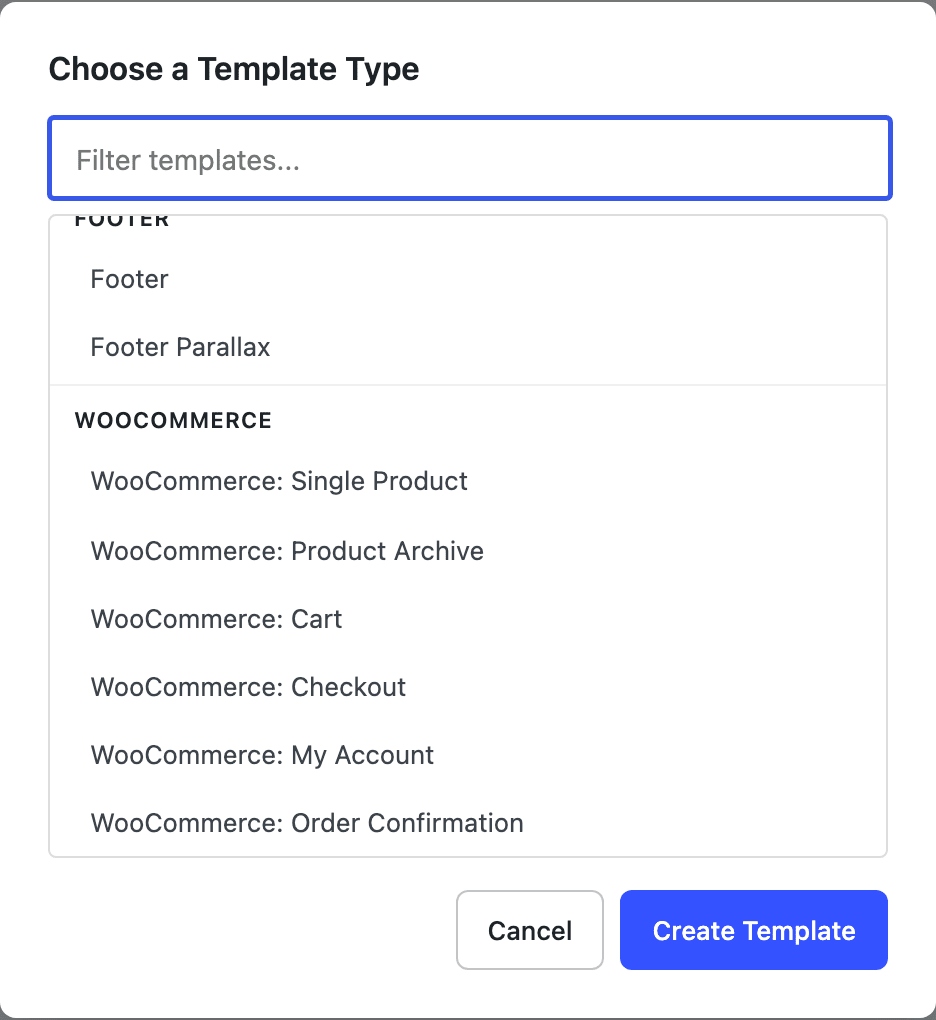
Version 3 brings full WooCommerce support to the Theme Builder. You can rebuild your entire shopping experience — product, archive, cart, checkout, account and order-confirmation pages — with Nectar blocks and WooCommerce's own blocks, in the familiar block editor, with the correct template context.
The WooCommerce template types only appear in the Theme Builder when the WooCommerce plugin is installed and active.
Template types
From Theme Builder → Add New Template, the WooCommerce group offers:
- Single Product — the individual product page.
- Product Archive — the shop page and product category / tag / attribute archives.
- Cart — the cart page.
- Checkout — the checkout page.
- My Account — the customer account area.
- Order Confirmation — the "order received" / thank-you page.
Each is rendered through the Theme Builder wherever it matches, replacing WooCommerce's default page output.
Creating a WooCommerce template
- In the WordPress admin, open Theme Builder and click Add New Template.
- In the WooCommerce group, choose a template type and click Create Template.
- The template opens pre-populated with sensible default content so you have a working starting point.
- Lay it out with Nectar blocks (Row, Column, Flex Box, Text, …) and the WooCommerce blocks that carry live store data — for example Product Gallery, Product Price, Product Rating, Add-to-Cart, Product Details, Product Collection (great for related/upsell products), Breadcrumbs, Catalog Sorting and Product Reviews.
- Optionally set display conditions to target specific products, categories, user roles or logged-in state — the same conditions available to every Theme Builder template. You can even create several templates of the same type for different audiences.
- Publish the template. (Drafts don't render on the front end.)
Zero-specificity style scoping
WooCommerce ships a lot of its own CSS. To keep your template styling flexible without fighting those defaults, Nectarblocks scopes the theme's and plugin's styles with the CSS :where() selector, which contributes zero specificity. In practice this means your block styles win predictably and you can restyle WooCommerce blocks freely, without specificity wars or a pile of !important.
Good to know
- WooCommerce blocks are normally restricted to the Site Editor; the Theme Builder re-enables them in the post editor so you can use them here, and relaxes some block-ancestor constraints (e.g. product rating outside a strict product context) so they work inside any layout you build.
- Each template type ships with optional default content as a starting point — you're free to clear it and build from scratch.
Related
- Theme Builder — create and manage all your templates, including WooCommerce.
- WooCommerce customizer options live under Theme → Customizer Options → WooCommerce for store-wide styling outside the templates.