WPML Integration
WPML is a popular translation plugin for WordPress, enabling you to create and manage multilingual websites. With WPML, you can translate your pages, posts, custom post types, taxonomies, and more into any language.
Nectarblocks is fully compatible with WPML, allowing you to translate your pages while preserving your layouts and styling. This guide covers two methods for translating your content.
Method 1: Advanced Translation Editor (Recommended)
The Advanced Translation Editor is WPML's built-in translation interface that allows you to translate content side-by-side with the original. This is the recommended approach for most users.
How to Use
- Install and configure WPML on your WordPress site
- Navigate to WPML → Translation Management
- Select the pages or posts you want to translate
- Click Translate and choose your target language
- Use the Advanced Translation Editor to translate your content
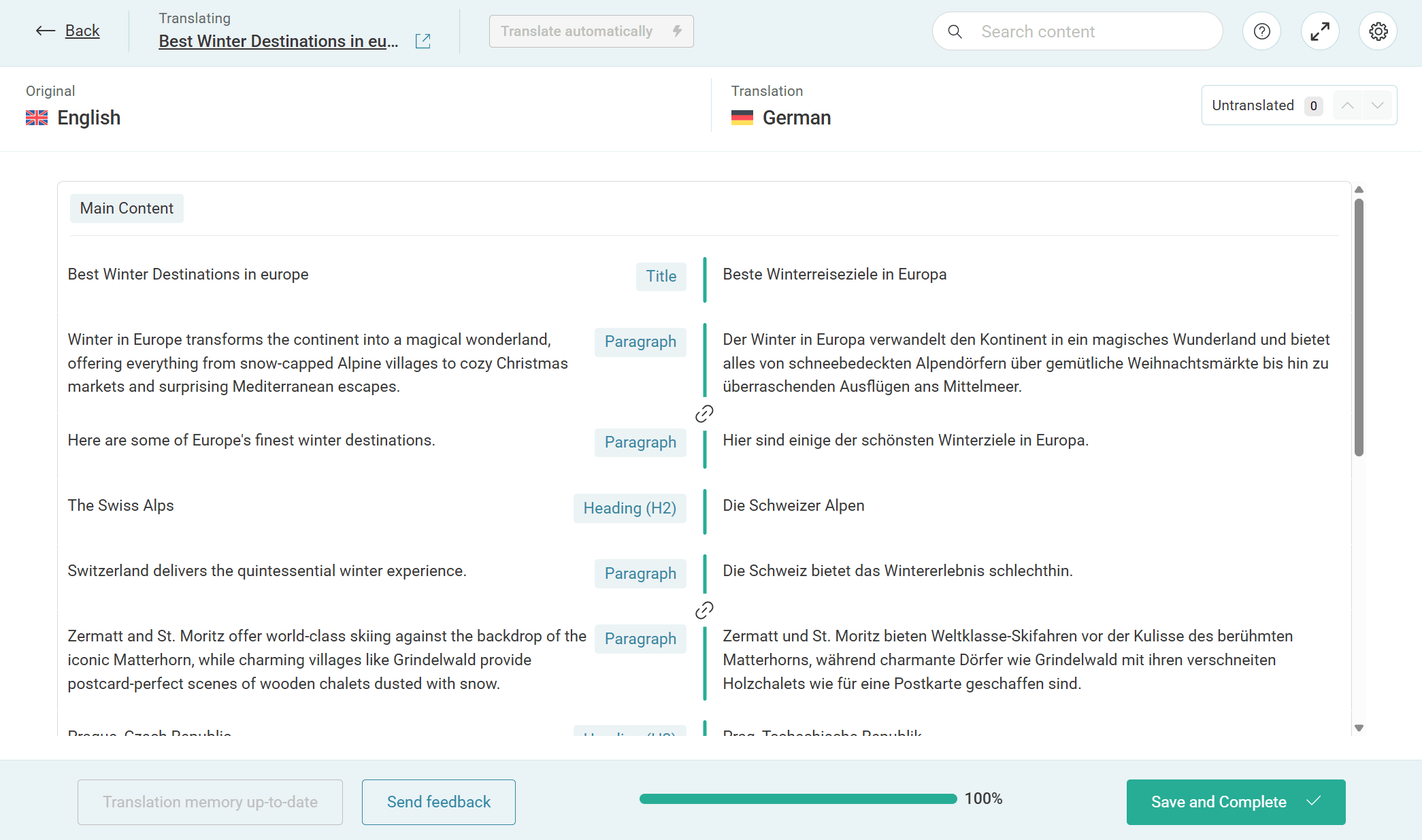
The Advanced Translation Editor automatically handles the relationship between your original content and translations. Your block layouts and styling remain intact—you only need to focus on translating the text content.
With this method, Nectarblocks styling is automatically synchronized between your original page and translations. No additional configuration is needed.
Method 2: Duplicate Pages
For users who want to localize their content—meaning each language version has completely different layouts or designs—you can use WPML's duplicate page feature. This creates an independent copy of your page for each language.
How to Use
- Navigate to WPML → Translation Management
- Select the page you want to translate
- Choose Duplicate content instead of using the translation editor
- Edit the duplicated page directly in the WordPress Block Editor
Special Consideration: The _nectar_blocks_css Field
When duplicating pages, there's an important setting to be aware of regarding how Nectarblocks CSS is handled across translations.
Nectarblocks stores custom CSS in a field called _nectar_blocks_css. By default, WPML sets this field to Copy, but when using the Duplicate Pages method, you should change this to Copy once so that each translation can have its own independent styling.
Finding the Setting
- Go to WPML → Settings
- Scroll to the Multilingual Content Setup section
- Click Show system fields
- Locate the
_nectar_blocks_cssfield in the Custom Fields table
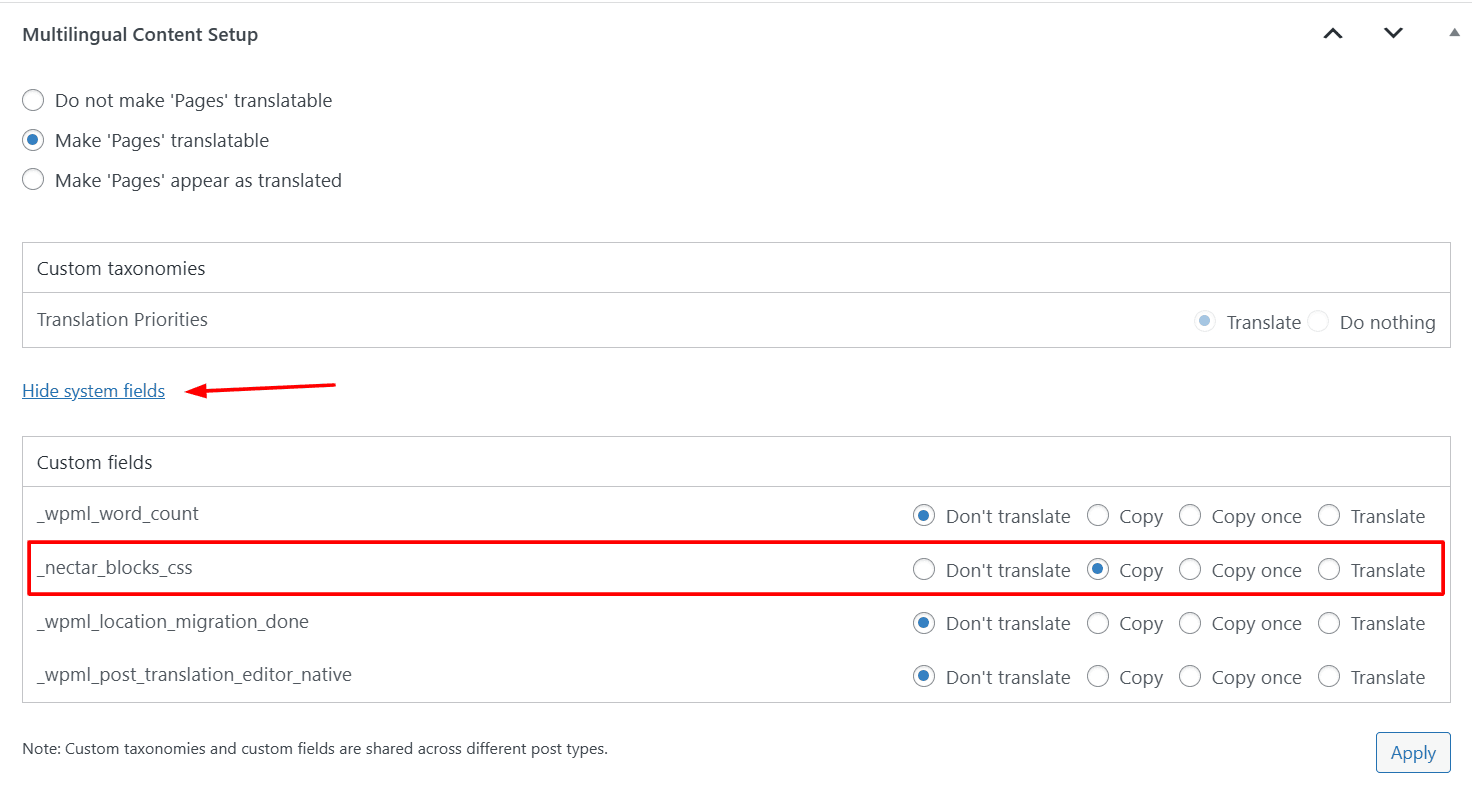
You'll see four options for this field:
| Option | Behavior |
|---|---|
| Don't translate | The field is ignored in translations |
| Copy | Translations always inherit the original value (default) |
| Copy once | Value is copied when translation is created, then becomes independent |
| Translate | Field can be translated through WPML's translation interface |
Recommended Configuration for Duplicate Pages
When using the Duplicate Pages method, set the _nectar_blocks_css field to Copy once. This is the recommended setting for this workflow.
Copy once gives you:
- Initial CSS copied from the original when the translation is created
- Full independence to modify the translated page's layout and styling afterward
- The ability to use the WordPress Block Editor to make design adjustments for each language
Note: The Copy setting should only be used if you're using the Advanced Translation Editor (Method 1), where styling stays synchronized automatically.
Translation preferences for custom fields are set globally in WPML—they cannot be configured at the individual page or post level. If you set _nectar_blocks_css to "Copy once", this setting will apply to all pages and posts using Nectarblocks.
Choosing the Right Approach
| Your Goal | Recommended Method | _nectar_blocks_css Setting |
|---|---|---|
| Translate text only, keep same design | Advanced Translation Editor | Copy (default) |
| Different content/design per language | Duplicate Pages | Copy once |
Troubleshooting
CSS not appearing on translated pages
If your translated pages are missing styling:
- Verify the
_nectar_blocks_cssfield setting in WPML → Settings - If using the Advanced Translation Editor with "Copy", ensure the original page has been saved after any recent changes
- If using Duplicate Pages with "Copy once", re-save the translated page in the Block Editor to regenerate the CSS
Changes on original not reflecting on translations
This is expected behavior when using Copy once with the Duplicate Pages method. Each translation becomes independent after creation. To sync changes, you'll need to manually apply them to each translation.
If you want automatic syncing, use the Advanced Translation Editor (Method 1) with the default "Copy" setting instead.