Getting Started Tab
When you first open the Nectarblocks admin panel, the Getting Started tab is the default view. It welcomes you and highlights main features with short video previews so you can explore the block collection, template library, global settings, block customization, responsive editing, and Unsplash image integration.
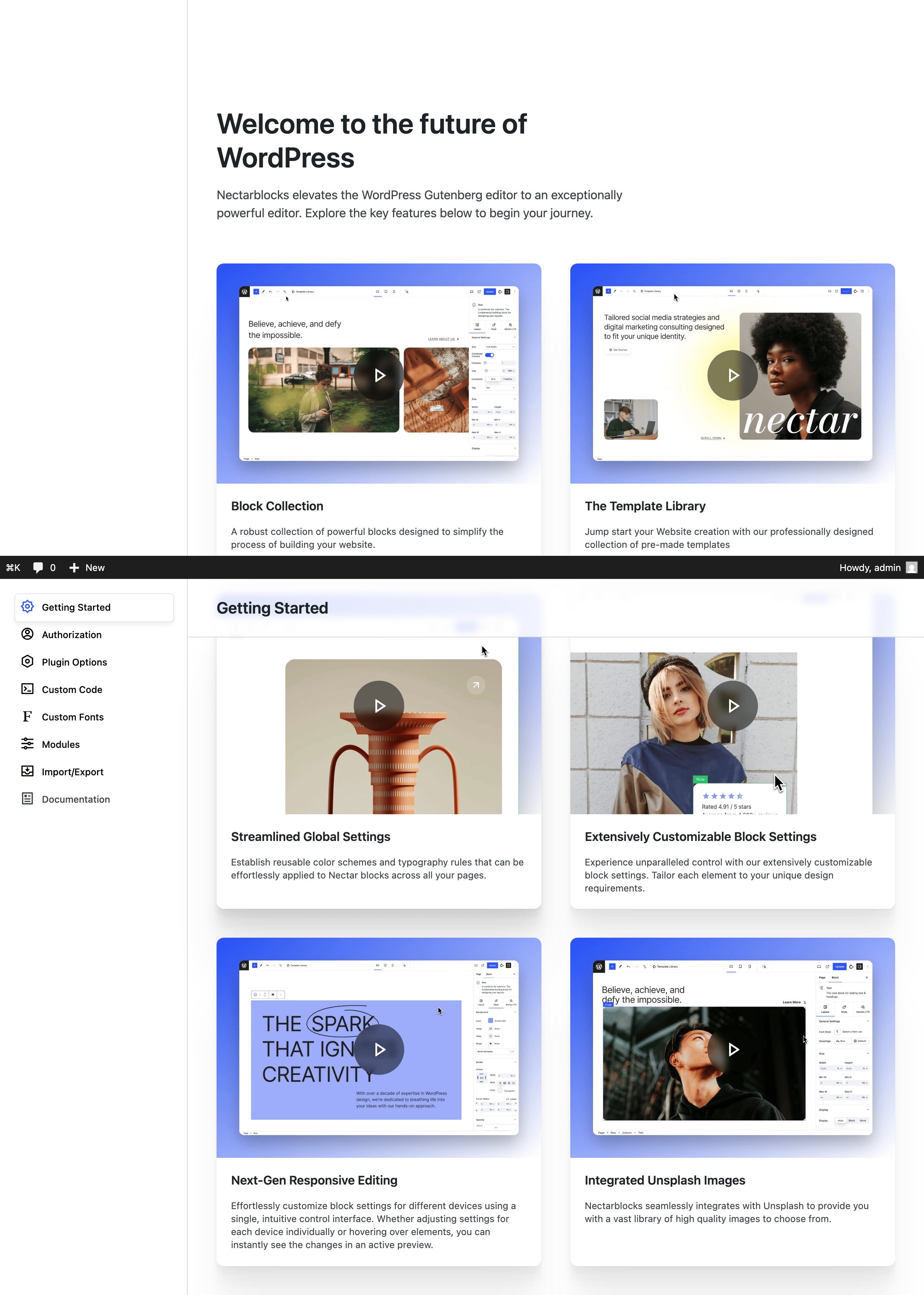
Where to find it
- In the WordPress admin, open Nectarblocks in the left sidebar or toolbar.
- The panel opens with Getting Started selected by default. You can return to it anytime by clicking the Getting Started tab.
What’s on the tab
The tab includes a short intro and a grid of feature cards. Each card has a short video and a link to the main idea:
- Block Collection – Overview of Nectar blocks.
- Template Library – Pre-made templates to start from.
- Global Settings – Colors and typography used across blocks.
- Block Settings – How to customize individual blocks.
- Responsive Editing – Device-specific and hover preview.
- Unsplash Images – Using Unsplash inside the editor.
Use this tab as a quick tour, then switch to other tabs (e.g. Authorization, Plugin Options, Import/Export, Modules) for specific settings.
Interactive editor guide
The first time you work with Nectarblocks in the block editor, an interactive onboarding guide runs as a spotlight overlay — dimming the screen and highlighting one part of the interface at a time while a tooltip explains it. It steps you through the essentials: the Block Library, adding blocks, block settings, the Nectarblocks sidebar, your design system, Responsive & Hover modes, and the Template Library. Use Next / Back to move through the steps, or Skip tour to dismiss it at any time.