Off Canvas Menu
The Off Canvas Menu template sets what's inside the panel that opens from your header's menu button. Instead of a plain list of menu links, you design the panel with blocks: large links, social buttons, contact details, images or anything else. It works with a Header Navigation template and with the classic theme header.
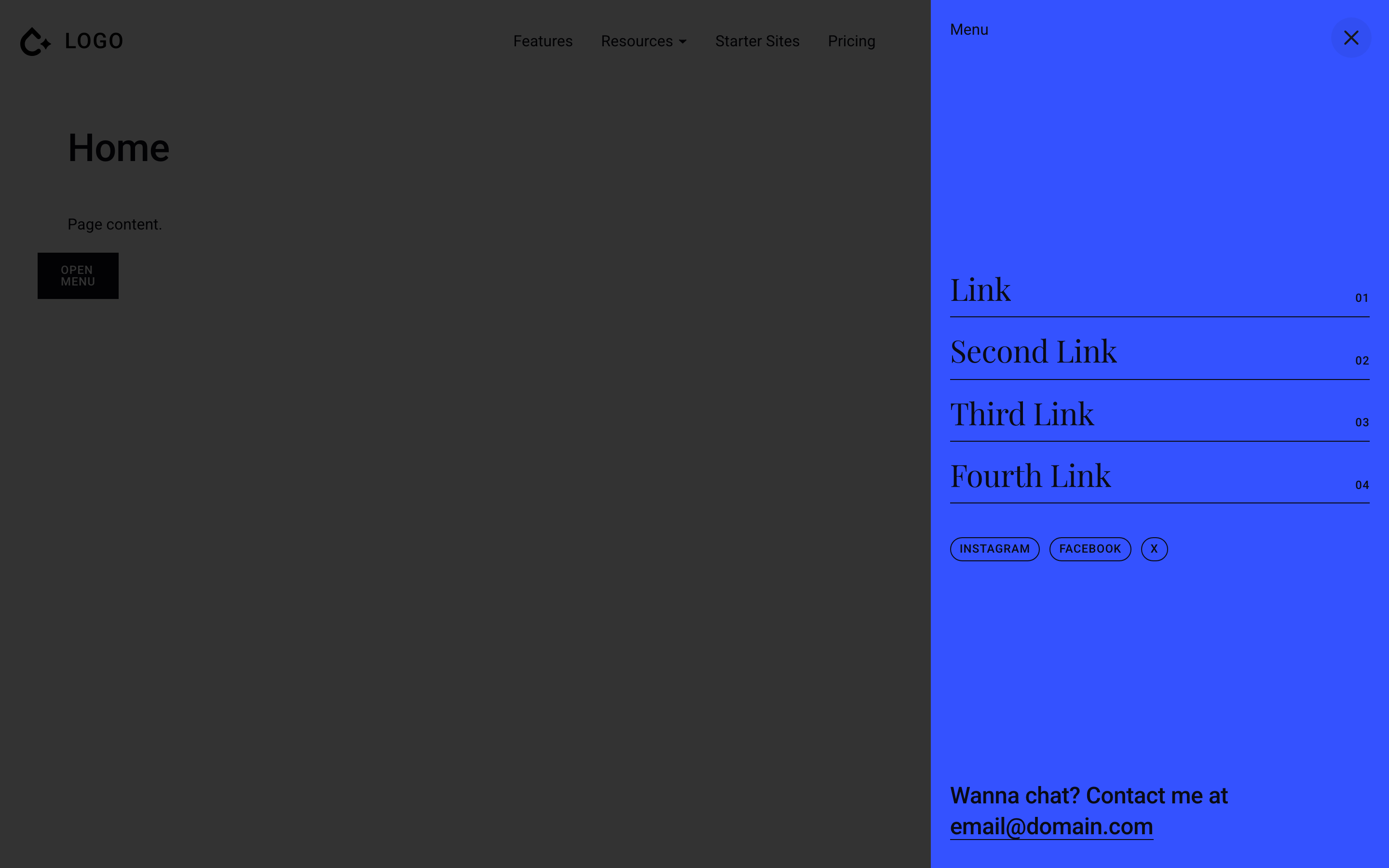
Create the template
- In the WordPress admin, open Theme Builder and click Add New Template.
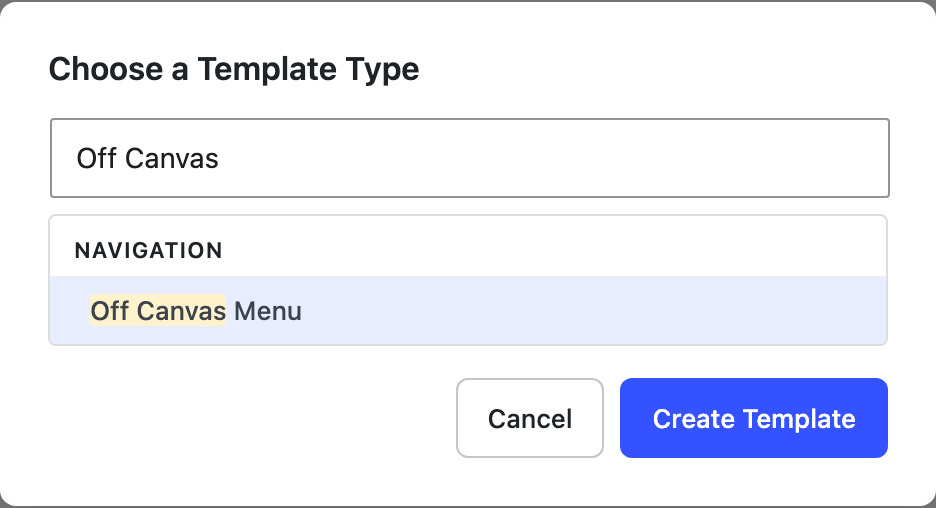
- Under Navigation, choose Off Canvas Menu and click Create Template.
- The template opens with a starter layout: a menu label, four large links, social buttons and a contact line. Edit it or replace it with your own blocks.
- Publish the template. New templates start as drafts, and the panel only uses published templates.
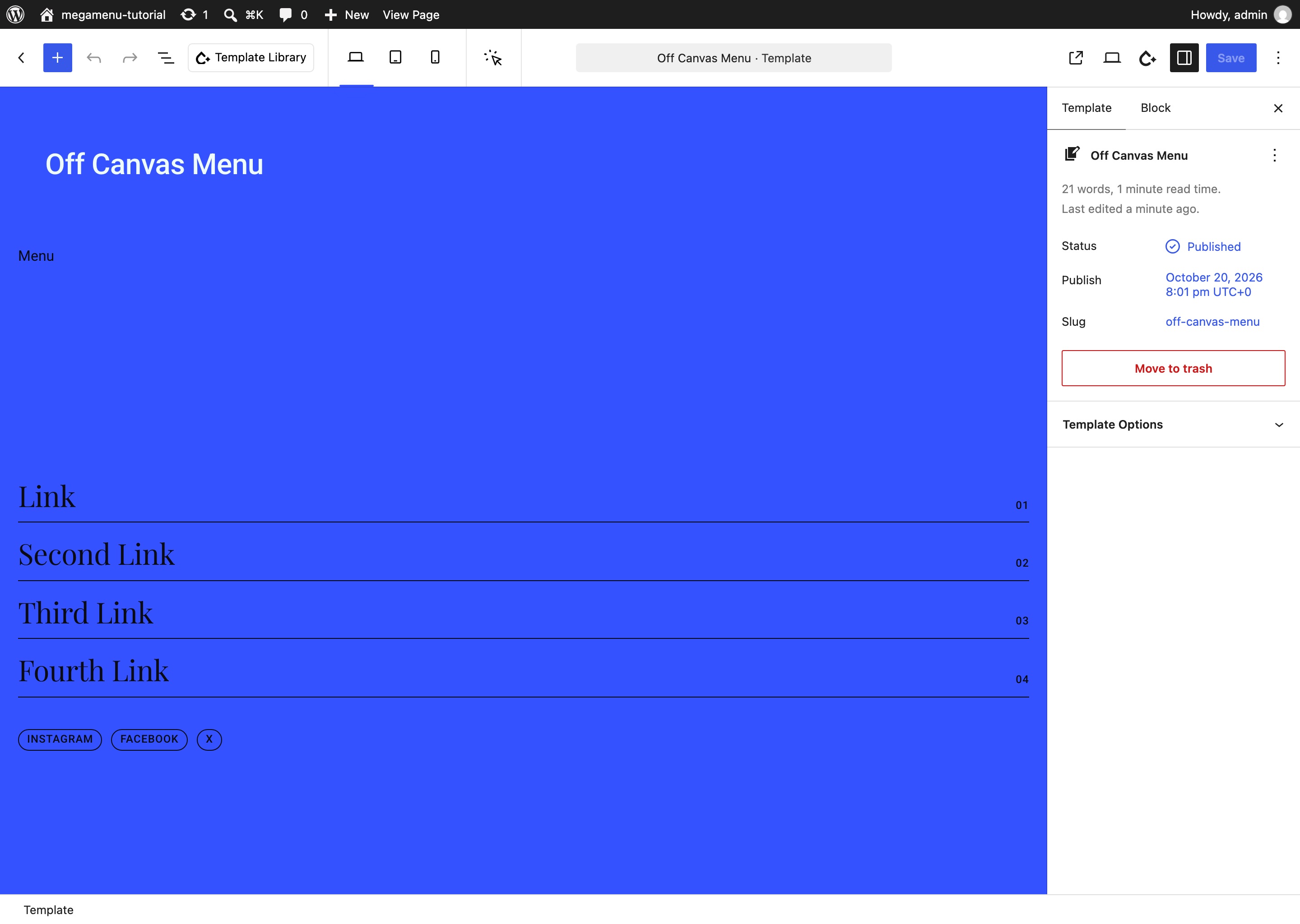
To start over, click Reset next to the template type under Template Options in the sidebar. For other starting points, the Template Library has an Off-Canvas Menu category and opens to it while you edit this template.
Display conditions
Like other templates, an Off Canvas Menu can have display conditions. Every published Off Canvas Menu template whose conditions match the page is shown, one below the other, so keep their conditions from overlapping. Pages that no template matches show the regular menu in the panel.
Open the panel
From the header's menu button
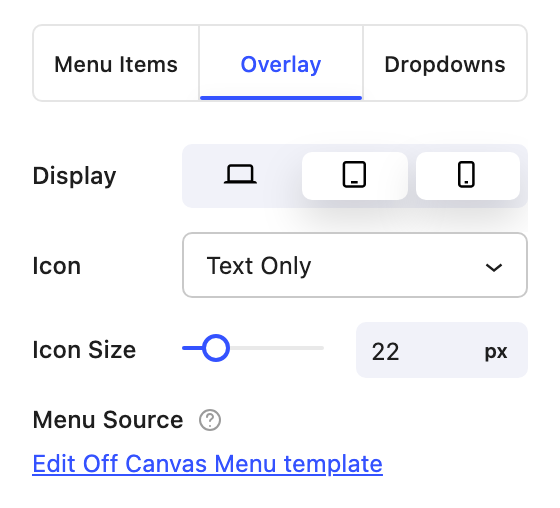
In your Header Navigation template, select the Navigation block and open its Overlay tab. Display sets which screen sizes show the menu button instead of the links:
- Desktop: 1025px and wider
- Tablet: 768px to 1024px
- Mobile: 767px and narrower
Only Mobile is selected by default. Turn on Desktop and Tablet to use the button at those sizes too.
Once a published Off Canvas Menu template exists, Menu Source on this tab becomes an Edit Off Canvas Menu template link, because the template now decides what the panel shows.
If the menu button does nothing, check that the header's Navigation block has at least one link. The panel is only added to the page when it does, even if those links are hidden behind the button at every size.
From any button or link
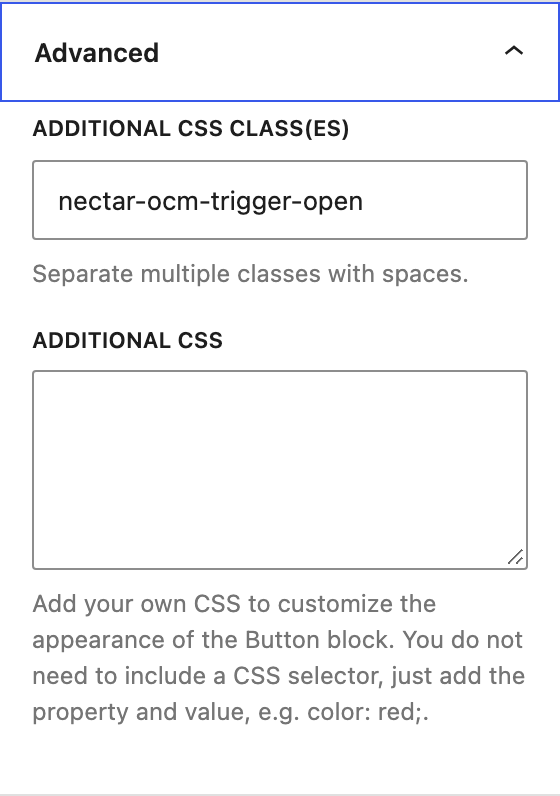
Add the class nectar-ocm-trigger-open to a Button block under Advanced → Additional CSS class(es). Clicking that button opens the panel at any screen size. For a classic menu item in Appearance → Menus, use the item's CSS Classes field, which you can switch on under Screen Options if it's hidden.
The Slide Out From Side Hover Triggered style is the exception. It only opens from the header's own menu button.
Closing the panel
The panel closes when the visitor clicks its close button or the menu button again, or presses Esc on a desktop browser. With Slide Out From Side, clicking the page behind the panel closes it too.
The fullscreen styles hide the panel's own close button and turn the header's menu button into a close button instead. If you open a fullscreen panel from your own button, keep the header's menu button visible at that screen size so visitors can close it.
What the template replaces
The template replaces everything inside the panel:
- The menu links, including whatever the Navigation block's Menu Source pointed at.
- The submenu links a megamenu falls back to on mobile.
- The panel's widget area and bottom text.
- Global Sections assigned to Before Off Canvas Menu Items, After Off Canvas Menu Items and Off Canvas Menu Meta Area.
To put a menu inside the template, use Button blocks like the starter layout does, or the regular WordPress Navigation block rather than Nectar Navigation. Set its Layout → Orientation to Vertical and its Overlay Visibility to Off, so it stays a plain list instead of collapsing into another menu button on phones.
Style the panel
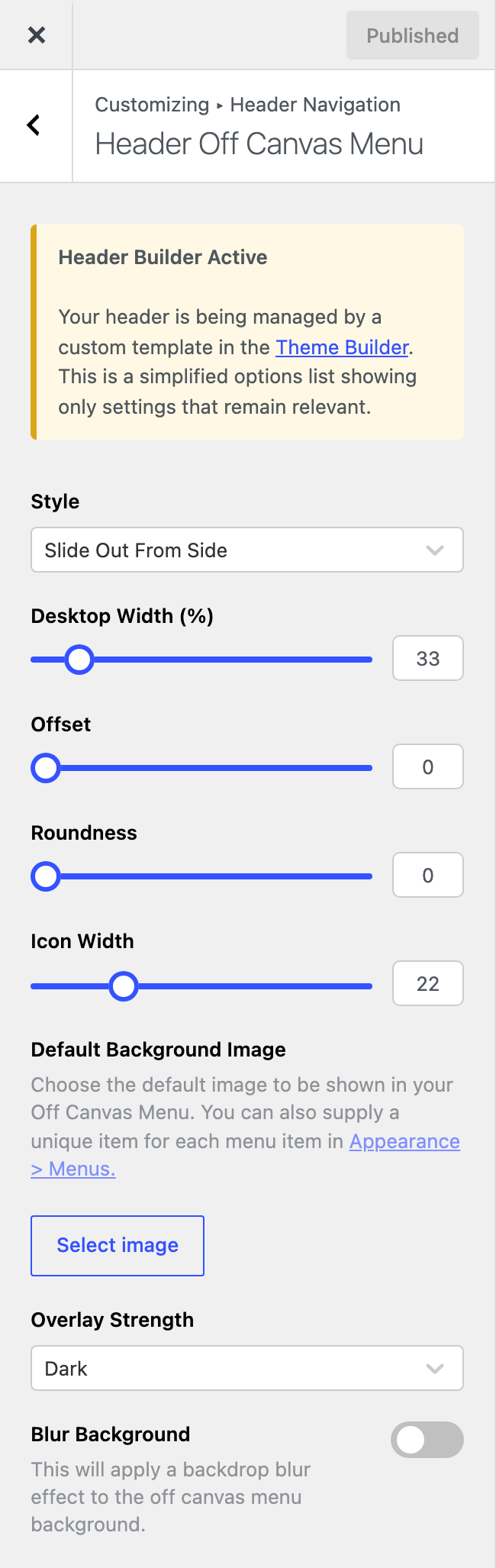
The panel itself is styled in Appearance → Customize → Header Navigation → Header Off Canvas Menu. With a Header Navigation template active, this section keeps the settings that still apply:
- Style: Slide Out From Side, Slide Out From Side Hover Triggered, Fullscreen Cover Slide + Blur BG, Fullscreen Cover Fade or Fullscreen Cover Split. This also sets the opening animation.
- Desktop Width (%): how wide the panel is with Slide Out From Side.
- Offset: a gap between the panel and the edges of the screen.
- Roundness: the panel's corner radius.
- Icon Width: the size of the menu button's icon.
- Overlay Strength: how much the page behind the panel is darkened.
- Blur Background: a backdrop blur on the panel's background.
The panel's background and close button colors are in Header Navigation → Header Color Scheme (Off Canvas Navigation BG, Off Canvas Navigation Close BG and Off Canvas Navigation Close). That section appears once a published Off Canvas Menu template exists. The BG Color, Close BG and Close Icon settings on the Navigation block's Overlay tab override them.
Everything else is styled on the template's own blocks. Animations on those blocks replay each time the panel opens.
With the fullscreen styles, the header switches to its Overlay Menu state while the panel is open, so you can restyle the header for it. See Header States.
Tall menus
If the template is taller than the screen, use Slide Out From Side or Fullscreen Cover Split. Both scroll at every screen size.
Related
- Header Builder: create and manage the Header Navigation template.
- Header States: restyle the header while the panel is open.
- Navigation: the Overlay tab's settings.
- Theme Builder: template types and display conditions.