Building a Megamenu
A megamenu is a Global Section that opens from a menu item. You design the panel once as a Global Section, then a Megamenu block inside your Navigation displays it and sets how wide it opens.
This guide uses the Resources menu from the nectarblocks.com header as the example.
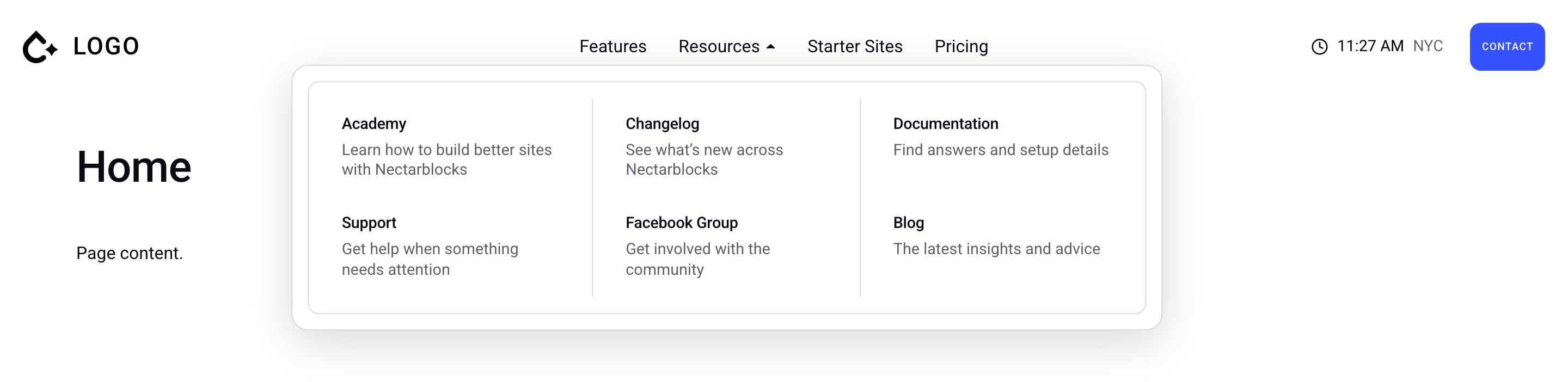
You need a Header Navigation template before you start. The Header Builder guide covers creating one in the Theme Builder.
The Enable Mega Menu option in Appearance → Menus belongs to the classic theme header (see Menu Options). It has no effect on a Header Navigation template, which uses the Megamenu block instead.
1. Create the Global Section
- In the WordPress admin, go to Global Sections and click Add New.
- Give it a name you will recognize later, such as
Resources Megamenu. You pick the section by this name in the Megamenu block. - Leave Display Locations and Display Conditions empty. The Megamenu block decides where the section appears. A display location would also print the section at that hook across your site.
- Build the panel with any blocks you like.
- Publish the section. The Megamenu block only lists published sections.
The Resources panel is a single Row and Column. The Column wraps its items into rows, and each of the six items is a linked Flex Box holding a title and a short description.
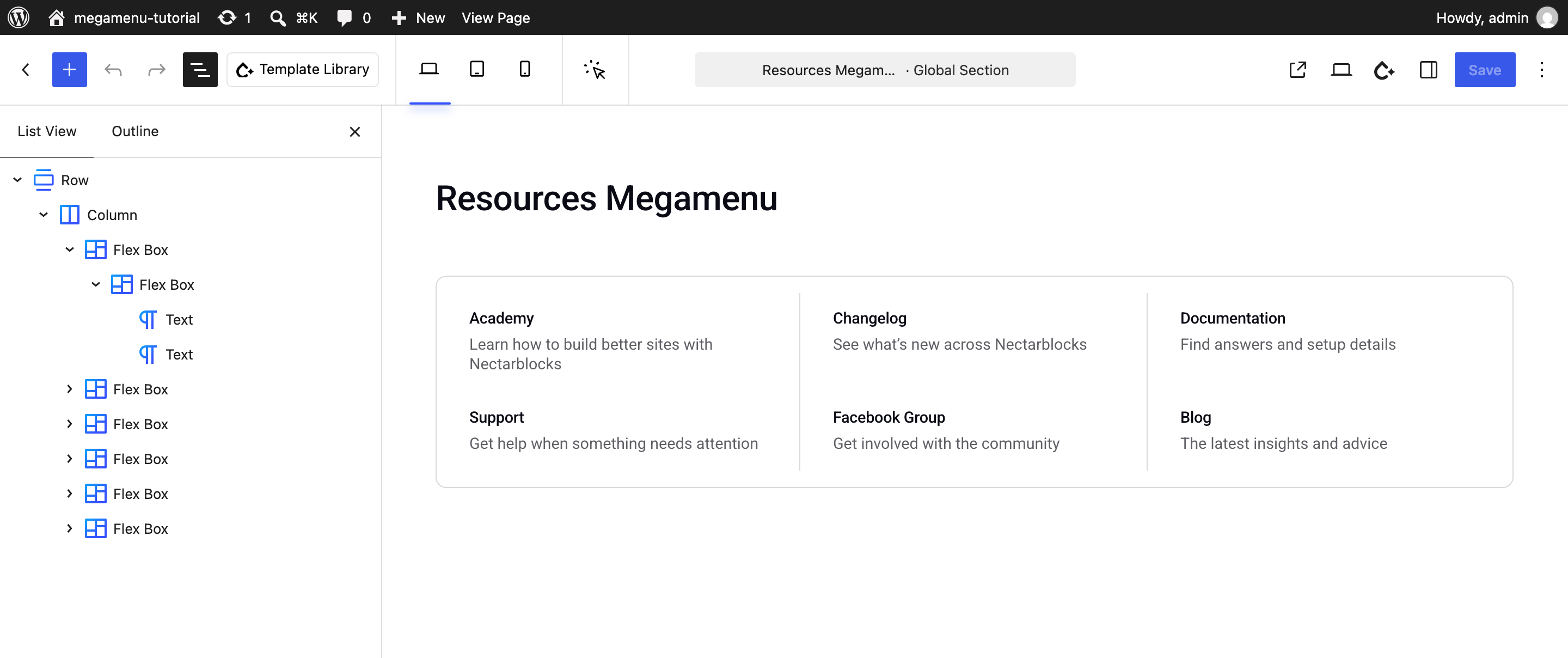
The section editor shows your content at the editor's full width. Most megamenus open narrower than that (see step 4), so check the layout on the front end as you go.
2. Add a Megamenu block to your menu
- In the Theme Builder, open your Header Navigation template.
- Add a link called Resources to the Navigation block, then click Add submenu in that link's block toolbar so it can hold other blocks.
- Insert a Megamenu block inside the Resources submenu.
You can also insert the Megamenu block straight into the Navigation block. It wraps itself in a new submenu called Menu Item. Rename that item to Resources.
3. Choose the Global Section
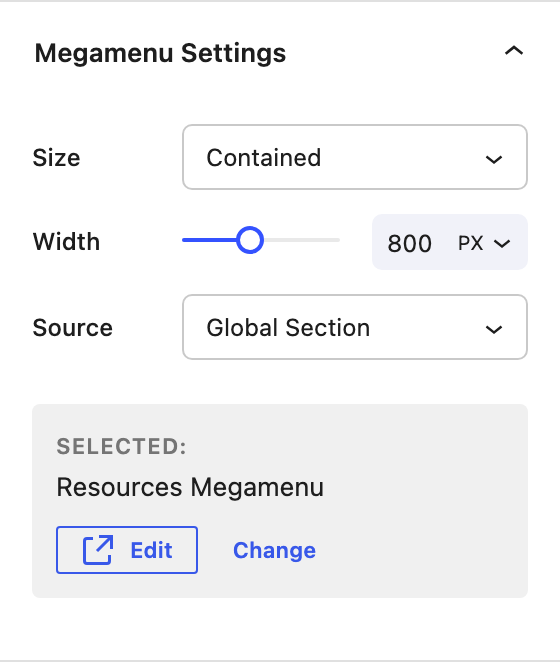
Select the Megamenu block and open Megamenu Settings in the sidebar:
- Set Source to
Global Section. - Type
Resourcesin the search field and pick Resources Megamenu from the list.
The panel now shows the selected section with two buttons. Edit opens the section in a new tab, and Change clears the selection so you can pick another.
Changes you make to the section show up in the megamenu as soon as you update the section. You don't need to re-save the header template, though a page caching plugin may keep serving the old version until you clear its cache.
Source can also be set to Pattern to use a synced pattern instead of a Global Section.
4. Set the size
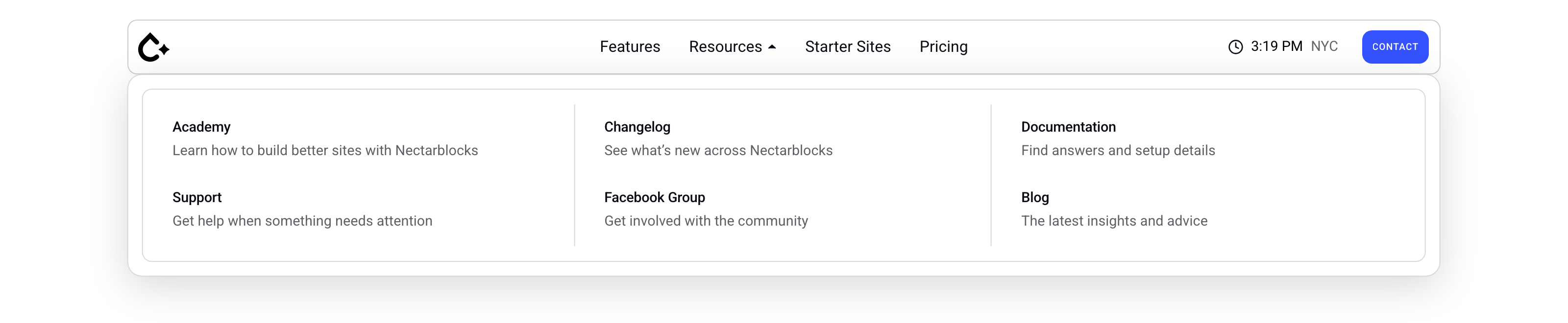
Size in Megamenu Settings decides how wide the panel opens and what it lines up with. The screenshots below show the same Resources section at each size, under a header that has scrolled into a floating bar.
Full Width
The panel spans the whole browser window and opens below the menu item. Use it for large panels, such as several columns of links with images. The section's content stretches with the window, so set a Max Width on its Row or Column if it shouldn't fill a very wide screen.

Header Width
The panel matches the width of the header bar the menu sits in and opens directly below it, so its edges line up with the bar. This suits floating or inset headers like the one shown. When the header bar spans the window, Header Width looks the same as Full Width. Outside a recognized header (a Nectarblocks header template, or a theme header using a header element or banner role), it falls back to the window width.
Contained
The panel has a fixed Width, set in px or vw. It centers under its menu item and shifts sideways if it would run past the edge of the window. Use vw if the panel should grow and shrink with the window.
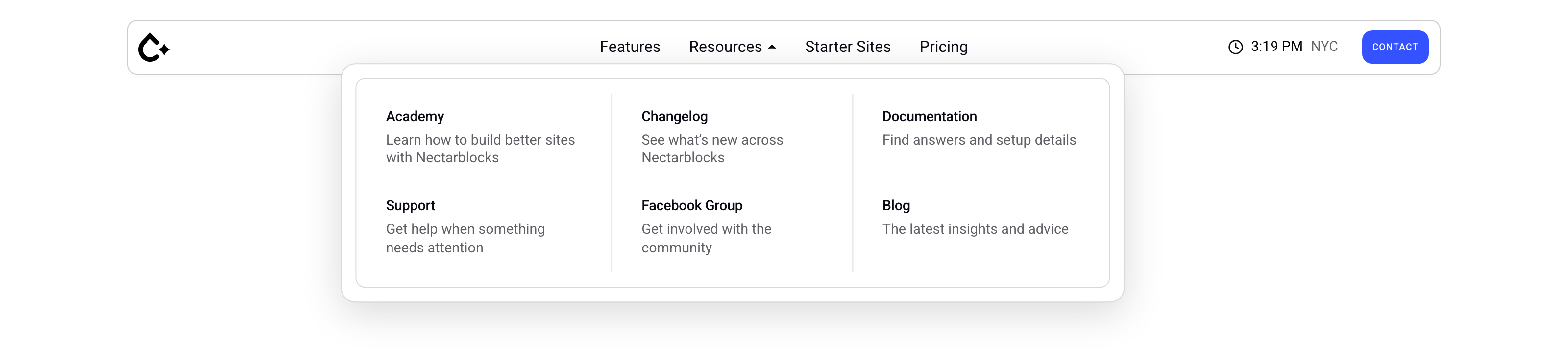
The Resources megamenu uses Contained at 800px, which is plenty for six short links. Every size recalculates its position when the window is resized.
The frame around the panel (background, padding, border and rounded corners) and the opening animation come from the Navigation block's Dropdowns tab. They are shared by every dropdown in that menu, so style them there rather than in the section.
5. Add links for the mobile menu
The overlay menu doesn't show megamenus. It lists the regular links in the same submenu instead. Which screen sizes use the overlay is set under Display in the Navigation block's Overlay tab, and only phones do by default. Add Navigation Link blocks next to the Megamenu block inside the Resources submenu, one for each page you want in the mobile menu.
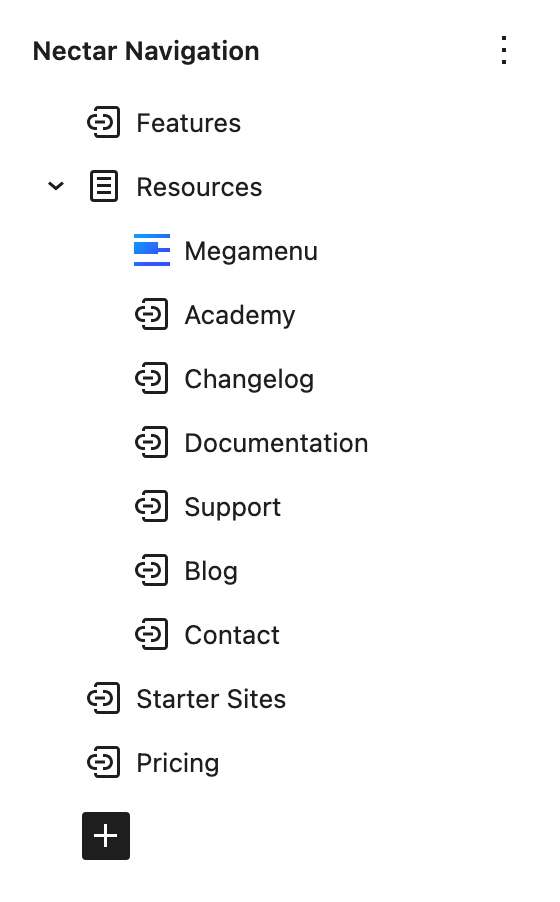
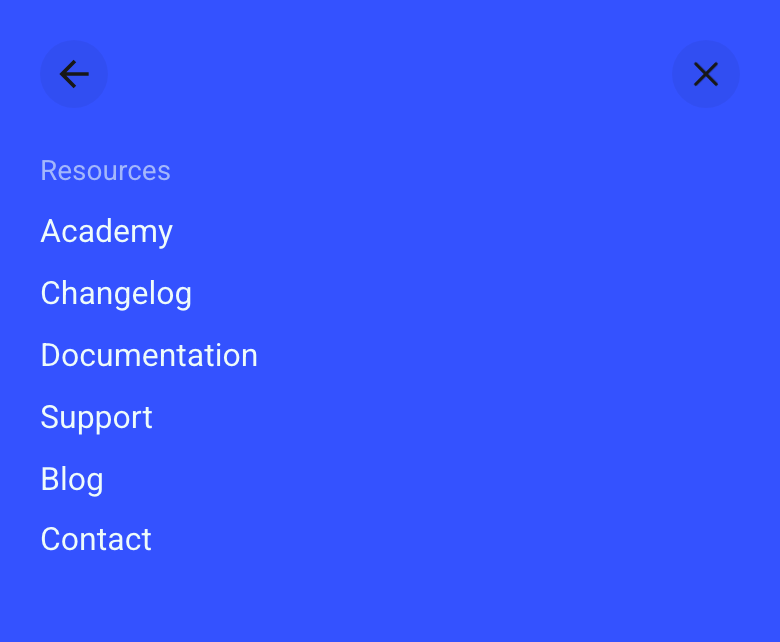
On desktop the megamenu takes the place of these links. In the overlay menu, tapping Resources opens a pane that lists them. The two don't have to match. The nectarblocks.com header adds a Contact link that only appears on mobile.
These links only appear while the Overlay tab's Menu Source is left at Inherit, which reuses the desktop menu. If it points at a different menu, the overlay shows that menu instead. If you've built an Off Canvas Menu template in the Theme Builder, that template replaces the overlay's contents entirely. See Navigation.
6. Save and test
Save the Header Navigation template, then check the front end:
- Hover Resources. The panel opens at the size you chose and stays open while the pointer moves into it.
- Resize the window. A Contained panel stays under its menu item, and a Header Width panel follows the header bar.
- Narrow the window to a size that uses the overlay menu (phone width by default), open it and tap Resources. The links from step 5 appear.
Repeat these steps for each menu item that needs a panel. Every Megamenu block points at its own Global Section and has its own size.
Related
- Megamenu: every Megamenu block setting.
- Navigation: Menu Items, Overlay Menu and Dropdowns controls.
- Global Sections: managing sections and their display rules.
- Header States: restyle the header when it is transparent or scrolled.