Global Sections
This feature relies on the hooks registered within the Nectarblocks theme. If you are using a different theme, you will not be able to take advantage of this feature.
Global sections are a special Post Type in Nectarblocks designed for content that will be repeated across multiple pages. They are useful for displaying content on every page of your site, such as a footer, call-to-action, or newsletter signup form.
Global Sections can be accessed from the WP Admin → Global Sections. Here you can create, edit and delete global sections. At the bottom of a global section, you'll find two metaboxes for Display Locations and Display Conditions. These allow you to control where and when the global section is displayed.
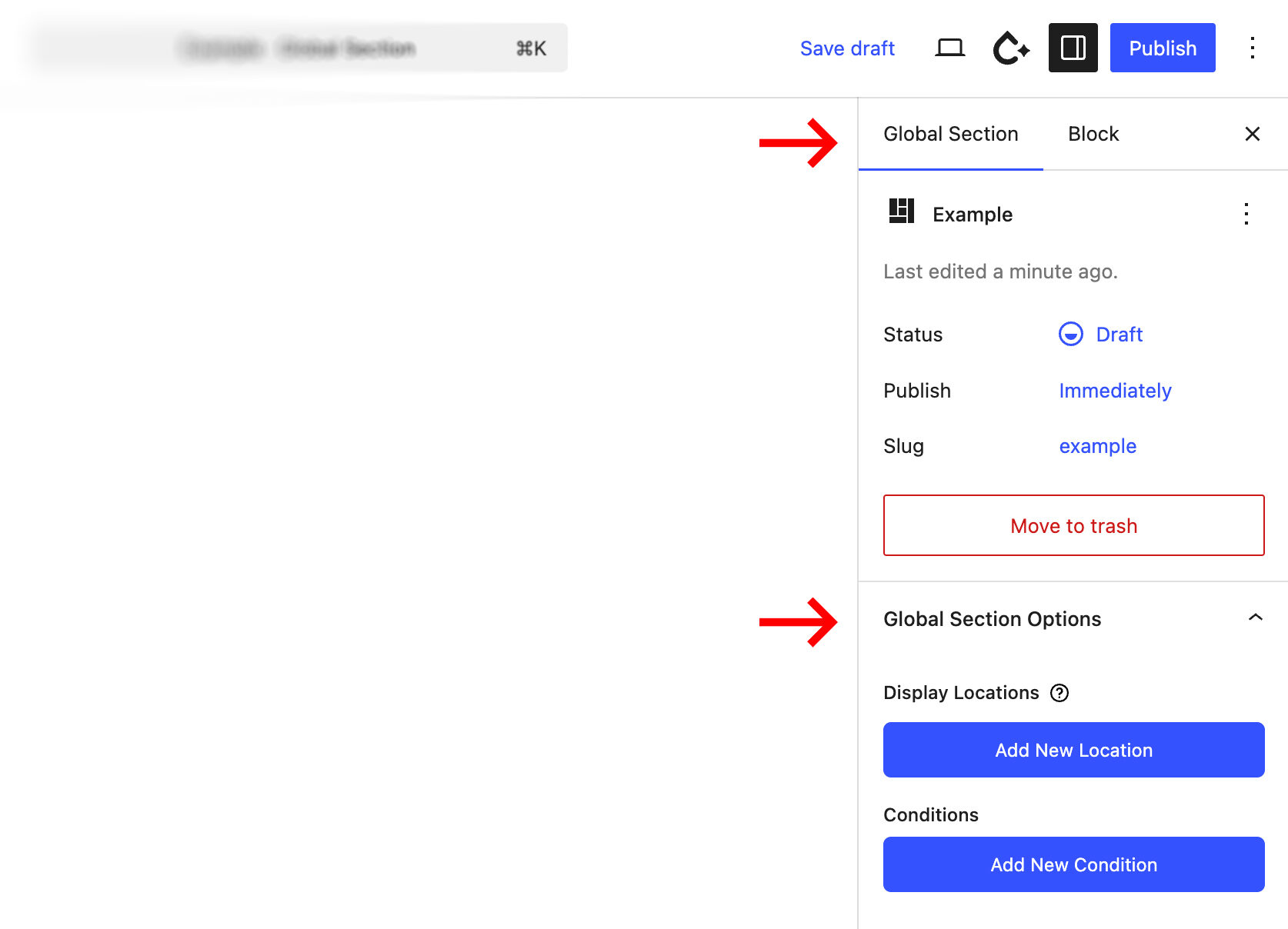
Display Locations
Global Sections can be injected into any Nectar hook. The picker groups locations by context so you can quickly find the right spot without memorizing hook names:
- Top – Header-only hooks (inside the navigation bar or immediately after it).
- Main Content – Before/after the page or post content, sidebar top/bottom, before/after the blog loop, and the 404 template area.
- Menu (Off-Canvas) – Slots before the menu list, after the list, or inside the meta/footer area of the off-canvas menu.
- Bottom – The footer hook, parallax footer variant, and the strip after the footer.
- WooCommerce – Split into four subgroups:
- Shop – Before/after the shop loop on catalog pages.
- Single Product – Before the summary, before/after the add-to-cart form, and after the summary.
- Checkout – Before/after billing, shipping, order notes, and order review/payment.
- Cart – Coupon area, before totals, before shipping, around the shipping calculator, and the proceed-to-checkout button.
Display Conditions
Display conditions determine when a Global Section should render. Each condition can either include (True) or exclude (False) a context, and multiple rules can be combined with AND/OR logic to build precise targeting.
Adding conditions
- Open a Global Section and locate the Display Conditions metabox beneath the editor.
- Click Add New Condition, pick
TrueorFalse, then choose a rule from the dropdown. - Some rules expose additional pickers (for example, selecting a taxonomy term or a specific post). Fill those in to complete the condition.
- Drag the AND/OR separator to switch between “all rules must match” and “any rule can match.”
Available rule types
- General contexts – Everywhere, Archive, Front Page, Search Results, Single.
- Specific Post – search for an individual post, page, or custom post entry.
- Taxonomy checks
- Is Taxonomy Term: display on taxonomy archive pages (categories, tags, or any registered taxonomy).
- Has Taxonomy Term: display when the current singular post is assigned to the selected term.
- Post types – automatically lists every public post type twice: once for all entries of that type, and once for “Single: Post Type Name” views.
- User state & roles – User Logged In, User Not Logged In, plus every editable role from your site (Administrator, Customer, Member, etc.).
Example setups
- Show a newsletter signup before the blog loop only on
Archivepages for the “News” category by pairing Display Location → Before Blog Loop with a condition:True + Is Taxonomy Term → Category → News. - Hide a promotional banner for logged-in customers by adding
False + User Logged Inso only anonymous visitors see it.
Visual Hook System
Nectarblocks provides a visual hook system to help you discover and attach global sections to your website while viewing the frontend. This system allows you to find the exact spot where you want to display your global section and instantly create a new section attached to that hook.
Creating an example website footer using a Global Section
In the following video, we'll demonstrate how to use the visual hook system to attach a global section to the footer of a website.