Rotating Text

The Rotating Text block is a headline where part of the text, or all of it, swaps between a list of items. Use it for lines like "Create any movie you imagine", where the last word keeps changing. Four effects are available: Typewriter, Fade, Pixel and Scramble. The rotation plays for every visitor, including those whose system is set to reduce motion. Keyboard and screen reader users get a pause button: it stays hidden until it receives focus, then shows at the end of the headline.
Marking text
Type your headline, select the words that should change, and click Rotate selected text in the block toolbar, next to Play preview. The marked words become the first item in the list. Everything outside the mark stays fixed. Items are plain text, so bold, italic and links inside the marked words are removed.

If you don't mark anything, the whole headline rotates. In that mode every item is a full line of text, and the headline is replaced by each item in turn.
To change the marked text later, edit the first item in the sidebar. To remove the mark, put the cursor inside the marked words and click Rotate selected text again. Removing the mark makes the whole headline rotate, so the whole headline becomes the first item and loses any bold, italic or links. Your other items are kept.
Sidebar Controls
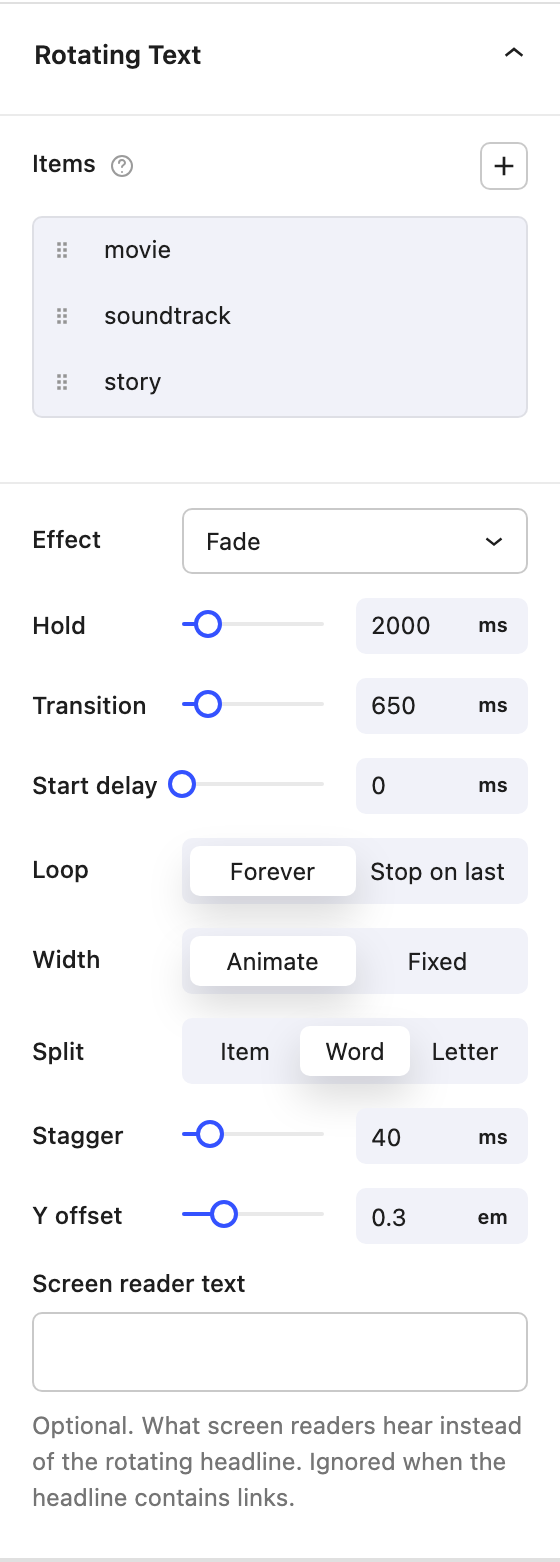
Items
- Items The list of values the text cycles through. The first item is the text you marked in the headline, or the whole headline when nothing is marked. Use Add item to append more, and the remove button to delete one. The help icon next to Items says whether the whole headline or only the marked words rotate.
- Screen reader text An optional sentence that screen readers announce instead of the headline. Leave it empty to have the headline read with the first item in place of the rotating text. It is ignored when the headline contains links.
Effect
Choose how items change. Each effect has its own settings.
- Typewriter Erases the current item and types the next one.
- Type speed Milliseconds per typed character.
- Erase speed Milliseconds per erased character.
- Erase style
Backspaceremoves characters one at a time.Fadefades the old item out instead. - Show cursor Shows a blinking cursor while typing.
- Fade Fades the old item out and the next one in.
- Split Animate the whole
Item, eachWord, or eachLetter. - Stagger The delay between each word or letter. Not shown when Split is
Item. - Y offset How far the text moves up as it fades, in
em. Set it to 0 for a pure fade with no movement.
- Split Animate the whole
- Pixel Swaps items through a blocky pixelated transition, drawn on a canvas for the duration of the swap.
- Block size The largest pixel block, as a percentage of the font size. Larger values give a chunkier look.
- Scramble The next item appears at its full length as random characters, then its letters lock into place from left to right. The box resizes while the letters are still scrambled.
- Characters The characters used while scrambling:
Letters,SymbolsorBoth. Each stand-in roughly matches the width of the character it replaces, so words keep their shape, andLettersalso keeps its case.
- Characters The characters used while scrambling:
Timing
- Hold How long each item stays on screen, in milliseconds.
- Transition How long the change between items takes. Typewriter uses its type and erase speeds instead.
- Start delay How long to wait before the first change.
- Loop
Foreverkeeps cycling.Stop on lastrotates once through the list and stays on the final item, and the typewriter cursor fades out once it finishes.
Width
- Animate The headline resizes as items change. Text after the rotating part moves to follow it, and when a sentence changes its number of lines, the content below moves too. Browsers count that movement as layout shift (CLS, one of Google's Core Web Vitals): a looping headline adds roughly 0.05 to the page's score, where 0.1 is the limit for a good rating. Choose Fixed when that score matters, for example in a hero at the top of the page.
- Fixed The block reserves room for the widest item, so surrounding text stays still. To do this, the block saves every item as hidden text inside the headline. Search engines and SEO tools can read that hidden text, so write each item as something you are happy for them to index.
Play preview
Use Play preview in the toolbar to watch the effect inside the editor. The preview stops when you edit the block.
Block Controls Available
The following are common Nectar Block controls which are used in other blocks as well as the Rotating Text block.
- Typography
- Font Size
- Color
- Rotating text color A solid or gradient color for the rotating text only.
- Cursor color The color of the typewriter cursor.
- Size
- Spacing
- Position
- Display
- Effects / Transform
- Animations