CSS Functions
Length settings in the block sidebar take more than a number and a unit. You can enter calc(), clamp(), min(), max() or any other value the CSS property accepts. Use them for spacing that scales with the screen, sizes that mix units, or limits a single number can't express.
Adding a function
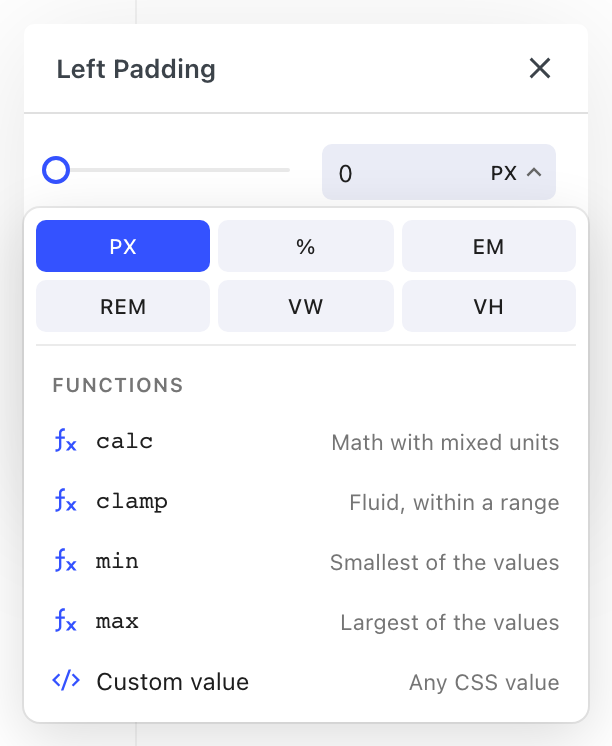
- Click the unit of a length setting, such as the PX on a padding side or a width. The menu lists the units, with the functions below them.
- Pick a function, or pick Custom value for anything else.
- Fill in the value. The function starts with the setting's current value in place, and Tab moves to the next part you still need to fill in.
- Press Enter or click Apply.
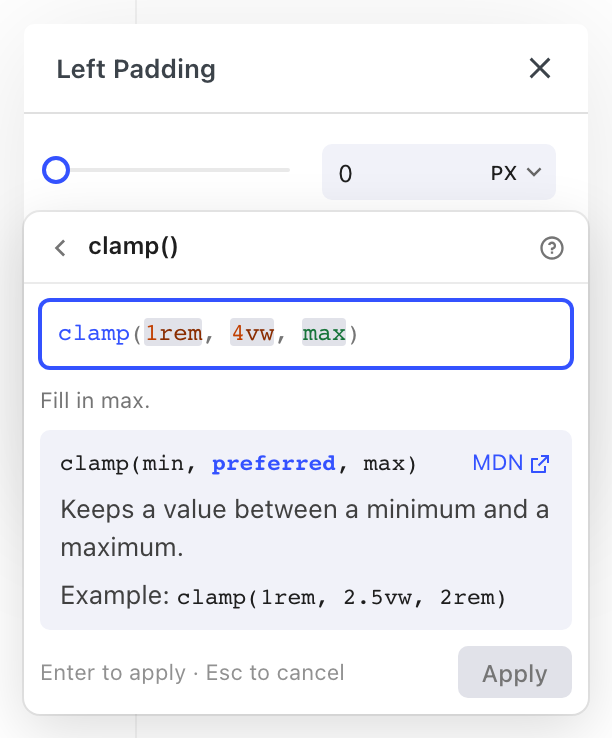
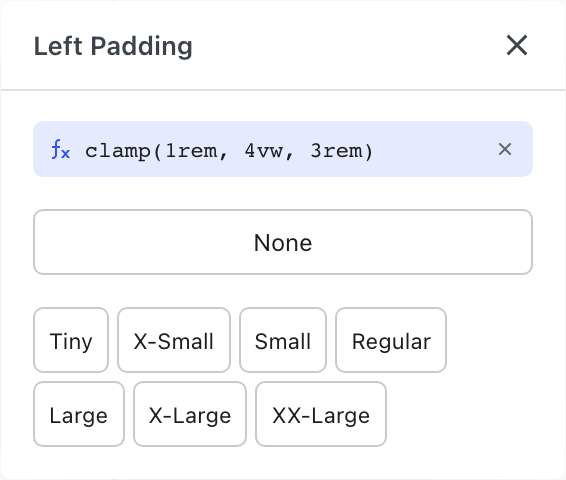
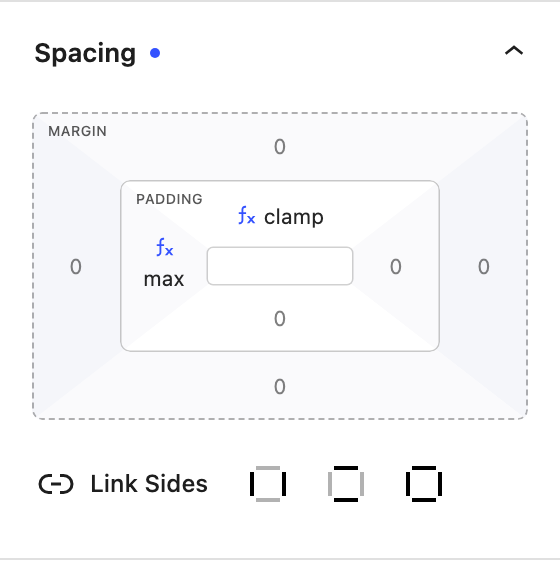
The value then replaces the number in the setting. Click it to edit it, or click the × next to it to remove it. In the spacing and position diagrams, a side with a custom value shows ƒx and the function's name, and hovering it shows the full value.
You can also start from the input itself:
- Typing letters after the number opens the function list with those letters as the search. Typing
clfindsclamp(). - Typing a function, such as
calc(, opens the editor with it. - Pasting a value such as
clamp(1rem, 4vw, 3rem)opens it in the editor. Pasting a plain length such as2.5remsets the number and unit, as long as the setting offers that unit.
Functions
| Function | Use it for | Example |
|---|---|---|
calc() | Math with mixed units | calc(100% - 2rem) |
clamp() | A value that grows with the screen but stays between a minimum and a maximum | clamp(1rem, 4vw, 3rem) |
min() | The smallest of two or more values | min(100%, 40rem) |
max() | The largest of two or more values | max(50vh, 20rem) |
| Custom value | Anything else the property accepts, such as a CSS variable | var(--section-gap, 2rem) |
While you type, the editor suggests functions, units and keywords, and shows what the current function expects with a link to its full reference.
Checking values
A value the browser would reject can't be applied. The editor points out the problem, for example a missing parenthesis, an unknown unit, or a + or - without spaces around it inside calc(). It also checks the value against the property, so padding can't be negative while margin can be auto.
A value that uses var() can't be fully checked in the editor, because the variable only gets its value on the page. Make sure the variable is defined where the block is used.
Clicking away applies a valid value. An unfinished one isn't applied, but it's kept, so you can reopen the editor and carry on. Press Esc to discard your changes.
For safety, a custom value can be up to 200 characters and can only use letters, numbers, spaces and . , % + - * / ( ) _. Functions that load files, such as url() and image-set(), aren't allowed.
Devices and states
A custom value works like any other value. Set one on desktop and change it on tablet or mobile, or use a different value on hover or in a header state. When a tablet or mobile value overrides desktop, its × removes it, so the setting goes back to the value it inherits.
Variables
Length settings can also use variables: named sizes you define once and change in one place. They're listed in the same menu, between the units and the functions. In the function editor, a variable shows as a chip with its name.
Where you can use functions
The functions are in the unit menu of block settings that take a length with a unit, including spacing, position, size, border width and radius, font size and line height, gaps, transforms, shadows, blurs and background image size.
A few length settings only take a number:
- Animation settings
- The Carousel, Image Gallery and Ticker gaps
- The Table of Contents scroll offset
- The Megamenu width
- Global typography and the theme customizer